 URLPluck
Copy multiple hyperlinks from Chrome in one action
When a page contains dozens of useful references, copying each URL manually is slow. URLPluck can collect the hyperlinks on the open webpage so you can review them and copy a list in one workflow. It's useful for research sources, project links, job listings and documentation pages.
Scope: This copies links available on the webpage you have open, not every URL on the entire website. If a webpage loads new links later, run the extractor after the content becomes visible.
How to copy all links from a webpage in Chrome
1. Add URLPluck to Chrome
Install the extension from the Chrome Web Store. URLPluck is free to use and does not require a sign-in.
2. Visit the page you want to collect links from
Open a documentation index, article with references, research page or another supported page containing hyperlinks. Expand or scroll through any dynamically loaded content you need first.
3. Click the URLPluck extension
Activate it from the Chrome toolbar. URLPluck extracts available hyperlink URLs and presents them in a list for reviewing.
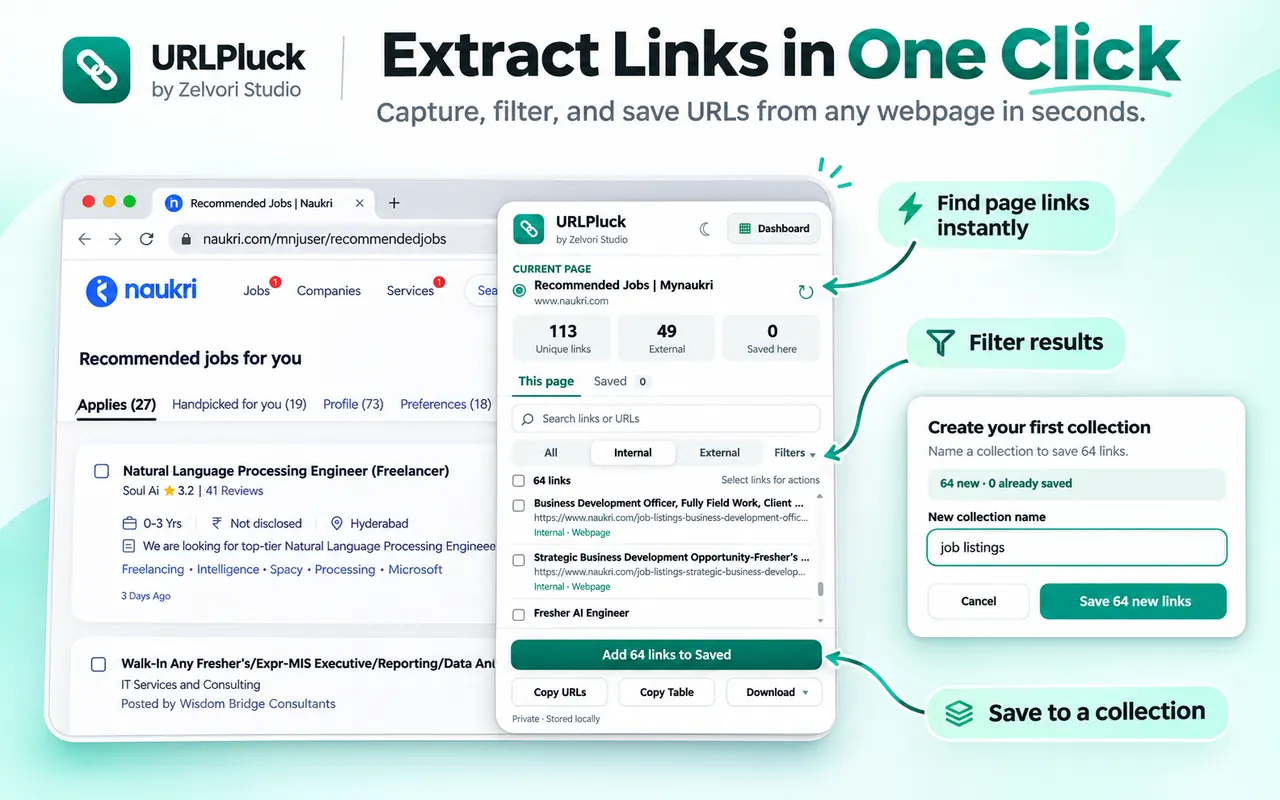
Find and review hyperlinks on the page instead of copying them individually. 4. Narrow the results if necessary
Use the available search and filtering options to focus on the links you want. Depending on the page, you might filter by domain or by internal versus external hyperlinks.
5. Copy the URL list
Use URLPluck's copy action to copy the extracted list or the relevant selection, then paste it where you need it: a document, email, spreadsheet or plain-text note.
How to remove duplicate links before copying
Pages often repeat the same destination in menus, footers and article content. If you copy everything without reviewing, you may get repeated URLs. Use URLPluck's duplicate filtering before you copy or export the list.
- Review duplicates: look for repeated destinations in the results.
- Apply duplicate filtering: reduce repeated URLs before copying.
- Check variations: URLs with different query parameters may not be identical even when they open similar pages.
A link containing ?utm_source=... can still differ from its clean URL. Don't assume all tracking-parameter variations will be merged automatically.
Save useful links in named collections
If you're gathering links from several webpages, copying to the clipboard each time can be inconvenient. URLPluck also allows you to save selected links in named local collections, such as Research sources or Documentation.
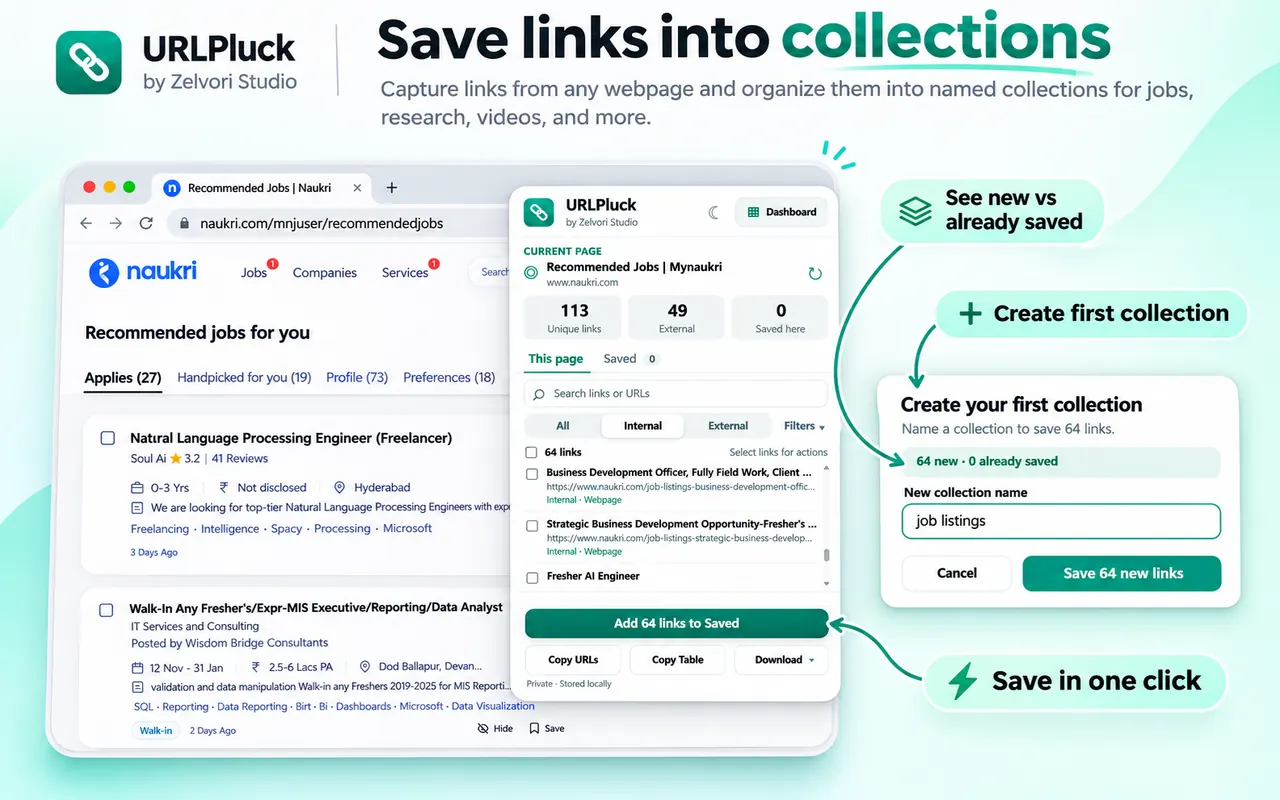
Open another webpage, extract its links, then save relevant URLs to the collection you want. You can review your collections from the extension dashboard.
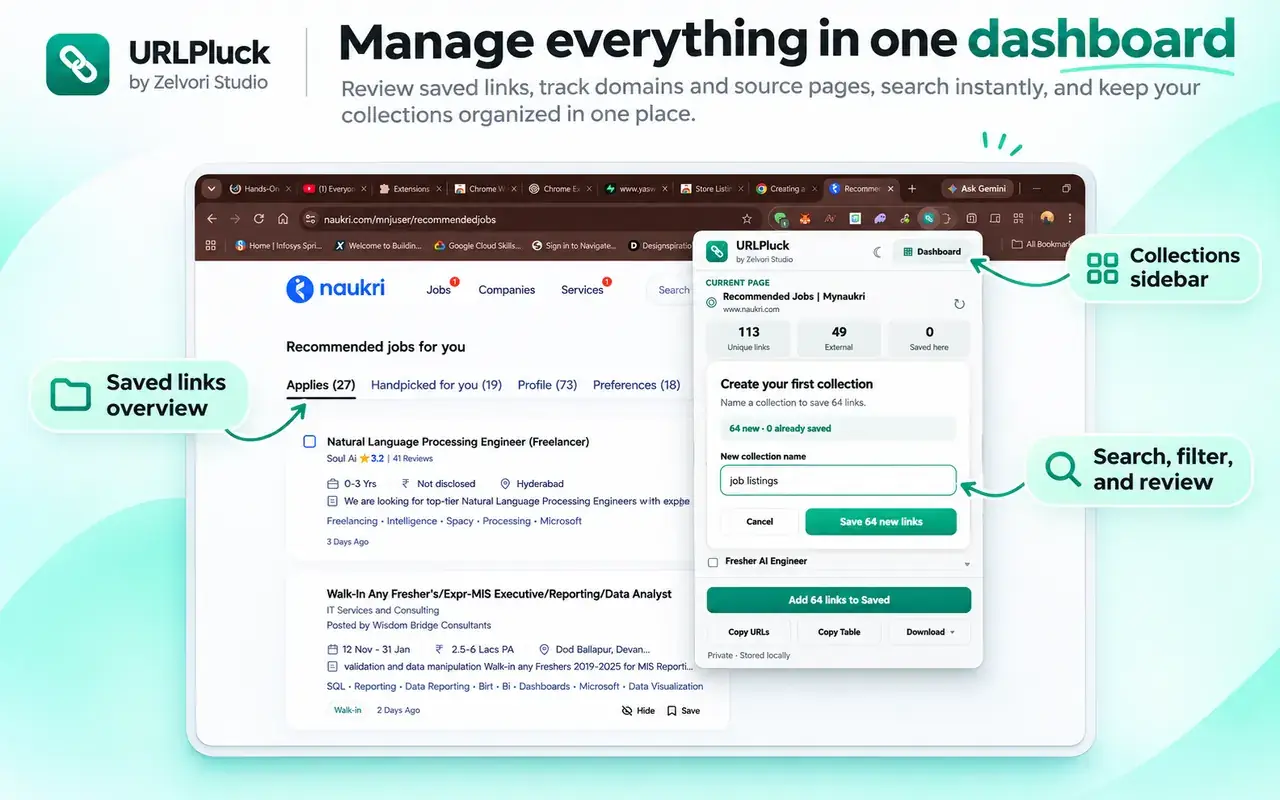
Should you copy links or export a file?
| Need | Better choice | Why |
|---|---|---|
| Paste URLs into a message or note | Copy | Fast, no file required |
| Sort URLs in Excel or Google Sheets | Export CSV or TSV | Fits spreadsheet workflows |
| Use the results in a script | Export JSON | Structured data format |
| Keep links from multiple pages | Save to a collection | Easy to revisit locally |
Want a spreadsheet file? Follow our CSV and Excel export guide. Or read the full extraction walkthrough if you're just getting started.
Why can't I copy some website links?
Some pages display buttons that are not conventional hyperlinks, or load link targets only after interaction. Content inside restricted pages or browser-internal views may not be accessible to extensions. Make sure the needed links have loaded before activating URLPluck, and check the extraction results before copying.
Frequently asked questions
How do I copy all links from a webpage at once?
Open the webpage in Chrome, activate URLPluck, review the extracted links, and use its copy action to copy the list.
Can I copy just external links?
URLPluck supports filtering links by their type, including internal and external destinations. Filter the results before copying.
Can I remove duplicate URLs before copying?
Yes. Use the duplicate-filtering controls to avoid repeated URLs in the copied results.
Can I save links collected from different pages?
Yes. Save selected links from each page to a named local collection in URLPluck.
Does copying links also download the linked webpages or files?
No. It copies hyperlinks. URLPluck does not bulk-download every file or page behind those links.
Try URLPluck on your next webpage
Extract hyperlinks from the page you're viewing, then copy, export or save your results locally. Free to install and no account required.
Install URLPluck from the Chrome Web StoreSee all features on the URLPluck homepage.