 URLPluck
Export website links to a spreadsheet without coding
Need the URLs from a resource page, research directory or job listing in a spreadsheet? URLPluck extracts hyperlinks from your currently open Chrome tab, then lets you download a CSV or TSV file. Both formats can be opened in Microsoft Excel or imported into Google Sheets.
Know the difference: URLPluck exports link lists as .csv or .tsv. It does not generate native .xlsx Excel workbooks and does not crawl every page of a website.
How to export all webpage links to CSV
1. Install the URLPluck Chrome extension
Go to the URLPluck Chrome Web Store listing and install the free extension. No login is needed.
2. Open the webpage that contains the links
Choose a page with visible hyperlinks, for example documentation references, a resource list or a collection of articles. If the page loads more items after scrolling, load them before starting.
3. Extract and review URLs
Click the URLPluck extension icon. You can search the resulting list, filter internal or external URLs, and remove duplicate links before exporting.
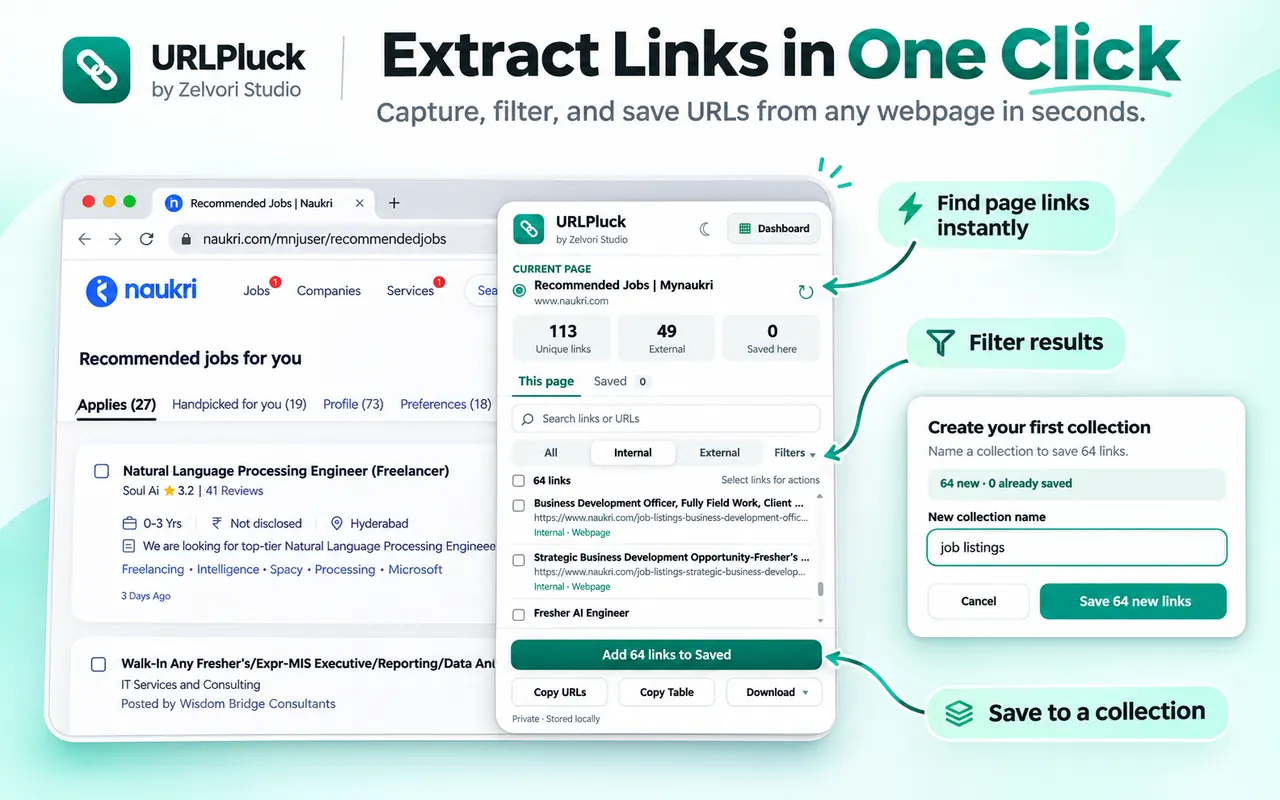
Review the extracted URLs and narrow down the ones you need. 4. Select CSV in the export options
Open the export controls, choose CSV, and download the file. CSV stores tabular data in a format that spreadsheet applications can read. If you prefer a tab-separated format, choose TSV.
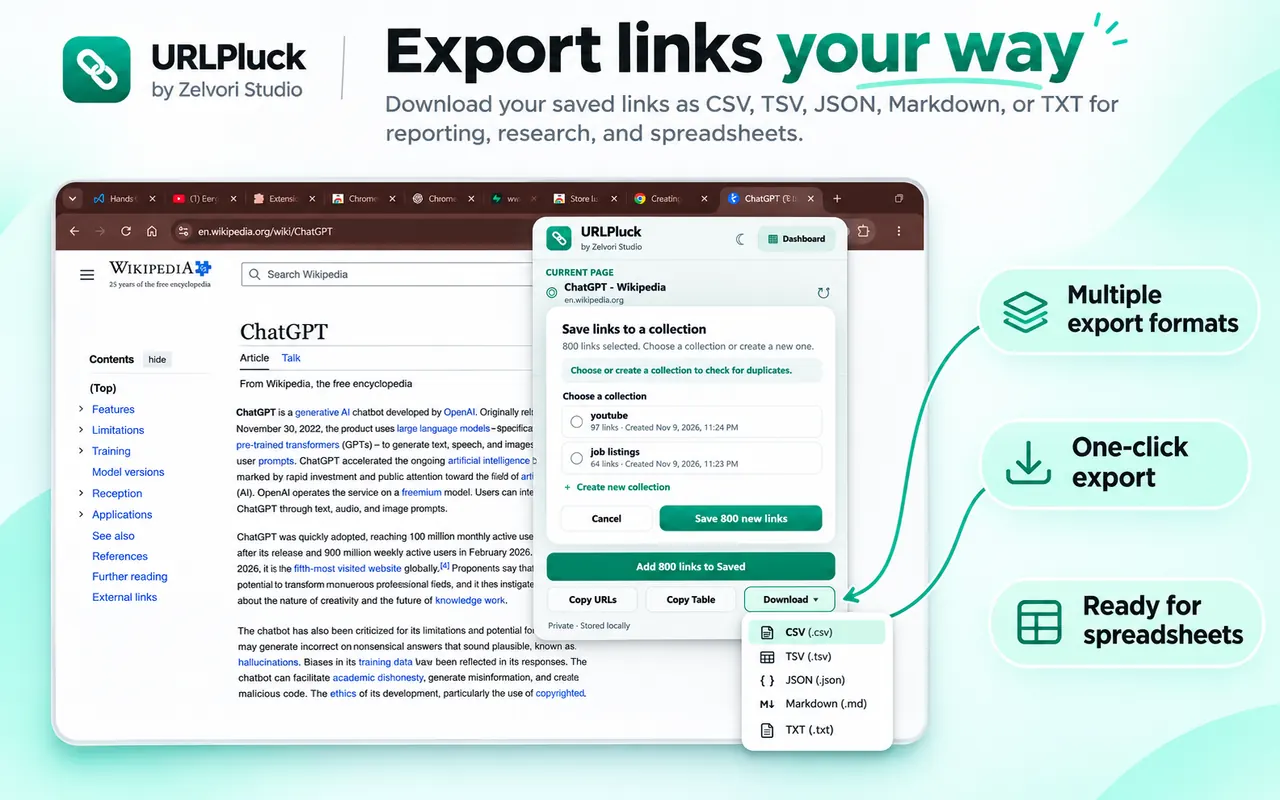
Choose CSV for an Excel-friendly export, or TSV for tab-separated data. 5. Save and open the download
Find the exported file in your Downloads folder. Give it a useful name such as
research-links.csvso you can identify it later.
How to open an exported link CSV in Microsoft Excel
- Open Excel and choose File → Open to select your downloaded CSV, or use Data → From Text/CSV to review import options first.
- Confirm the preview shows the URLs in the correct columns. If the content appears in one column, choose a comma delimiter for CSV or a tab delimiter for TSV.
- Review any encoding settings if some text looks unusual, then load the data.
- Save as an Excel workbook if you want to keep notes, formatting, or analysis alongside the links.
Spreadsheet tools treat some text as dates or numbers automatically. When preserving exact URLs or identifiers matters, check the imported column types rather than relying on automatic detection.
How to import URLPluck CSV into Google Sheets
- Create or open a Google Sheet.
- Choose File → Import → Upload and select the CSV file.
- Choose where the imported data should appear and confirm the separator if prompted.
- Import, then use filters or notes to organize the list.
The file stays in your browser until you choose to upload it to Google Sheets or another service. URLPluck itself does not require cloud storage for saved collections.
Which URL export format should you choose?
| Format | Best for | Typical next step |
|---|---|---|
| CSV | Link lists for spreadsheets | Open in Excel or import into Sheets |
| TSV | Tab-separated spreadsheet data | Import with tab delimiter |
| JSON | Structured link data | Process using a script or application |
| Markdown | Notes and documentation | Paste into a Markdown file |
| TXT | Simple text-based link lists | Review in a text editor |
Tips for cleaner exported link lists
- Filter out unrelated navigation links before downloading.
- Remove repeated URLs so the spreadsheet is easier to review.
- Keep source pages separate when you need to remember where a URL came from.
- Check that the page finished loading before extracting.
- Save useful URLs to a named URLPluck collection when working across multiple pages.
Common problem: the CSV is missing links
URLPluck reads hyperlinks available on the open webpage when you run it. Links loaded after scrolling, clicking a menu or changing a tab might not be there yet. Load the content and extract again. If you're trying to export every URL across a whole domain, you need a website crawler rather than a current-page link extractor.
If you only need a quick copy instead of a file, read our tutorial on copying all links in Chrome. For the complete extraction workflow, see how to extract links from a webpage.
Frequently asked questions
Can I export all links from a webpage to Excel?
Yes. Use URLPluck to export the open webpage’s links as CSV or TSV, then open the file in Excel. It is not a native .xlsx export.
Does URLPluck export links directly to Google Sheets?
Not directly. Download a CSV or TSV, then import that file into Google Sheets.
Can I export internal and external links separately?
URLPluck provides filters for reviewing internal and external hyperlinks. Apply the filter you need before exporting the list.
What if my CSV shows all the data in one column?
Use the spreadsheet import controls and choose the delimiter matching your export: comma for CSV, tab for TSV.
Will URLPluck find every URL across an entire website?
No. URLPluck extracts links from the currently open webpage. It is not a whole-site crawler.
Try URLPluck on your next webpage
Extract hyperlinks from the page you're viewing, then copy, export or save your results locally. Free to install and no account required.
Install URLPluck from the Chrome Web StoreSee all features on the URLPluck homepage.