 URLPluck
What does extracting links from a webpage mean?
Webpages contain clickable hyperlinks leading to articles, products, documentation, videos, job listings and other resources. A link extractor collects the URLs of those hyperlinks into a list. It helps when you need to copy all links from a webpage, review external resources, or prepare a spreadsheet of sources.
URLPluck is a free link extractor Chrome extension for the currently open webpage. It lets you review and filter found links, remove duplicates, save useful links to local collections, and export lists without writing code.
Important: URLPluck extracts links available on the open page. It does not automatically crawl every page on an entire website, and it does not reveal links that the webpage has not loaded.
How to extract all webpage links in five steps
1. Install URLPluck from the Chrome Web Store
Open the URLPluck Chrome Web Store listing, choose Add to Chrome, and confirm the installation. You do not need a URLPluck account to start extracting links.
2. Open the webpage you want to inspect
Visit a page containing the hyperlinks you need, such as a list of references, a project page, or a directory of useful resources. If it loads more links as you scroll, load the content first.
3. Activate the extension
Click the URLPluck extension icon in Chrome to extract hyperlinks from the current webpage. Review the extracted list and the available link labels.
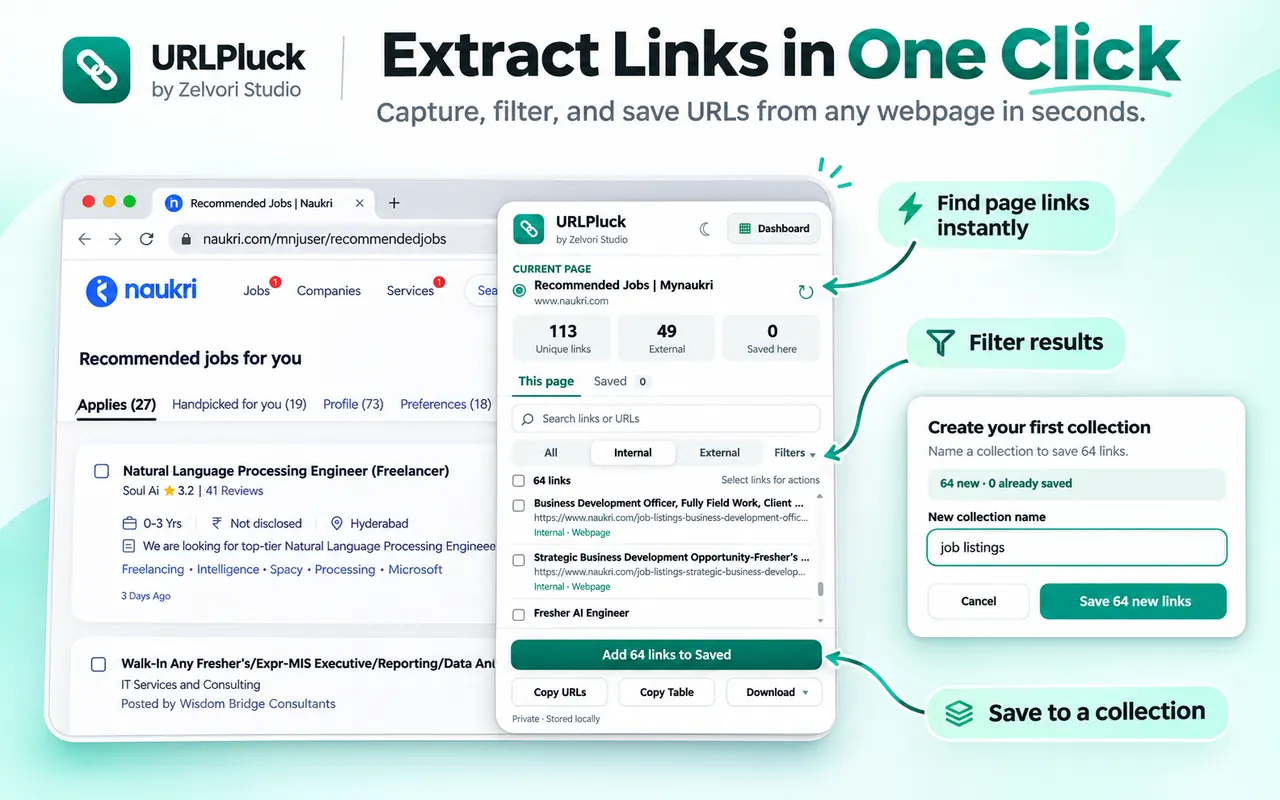
Review hyperlinks and URLs found on the open webpage. 4. Filter and remove duplicate URLs
Search or filter the results to focus on relevant domains, link types, or internal and external hyperlinks. Use the duplicate controls to avoid repeating identical URLs in your output.
5. Copy, export, or save the links
Use URLPluck's copy action when you want a quick list, or export to CSV, TSV, JSON, Markdown, or TXT. You can also save selected links to a named local collection to revisit them later.
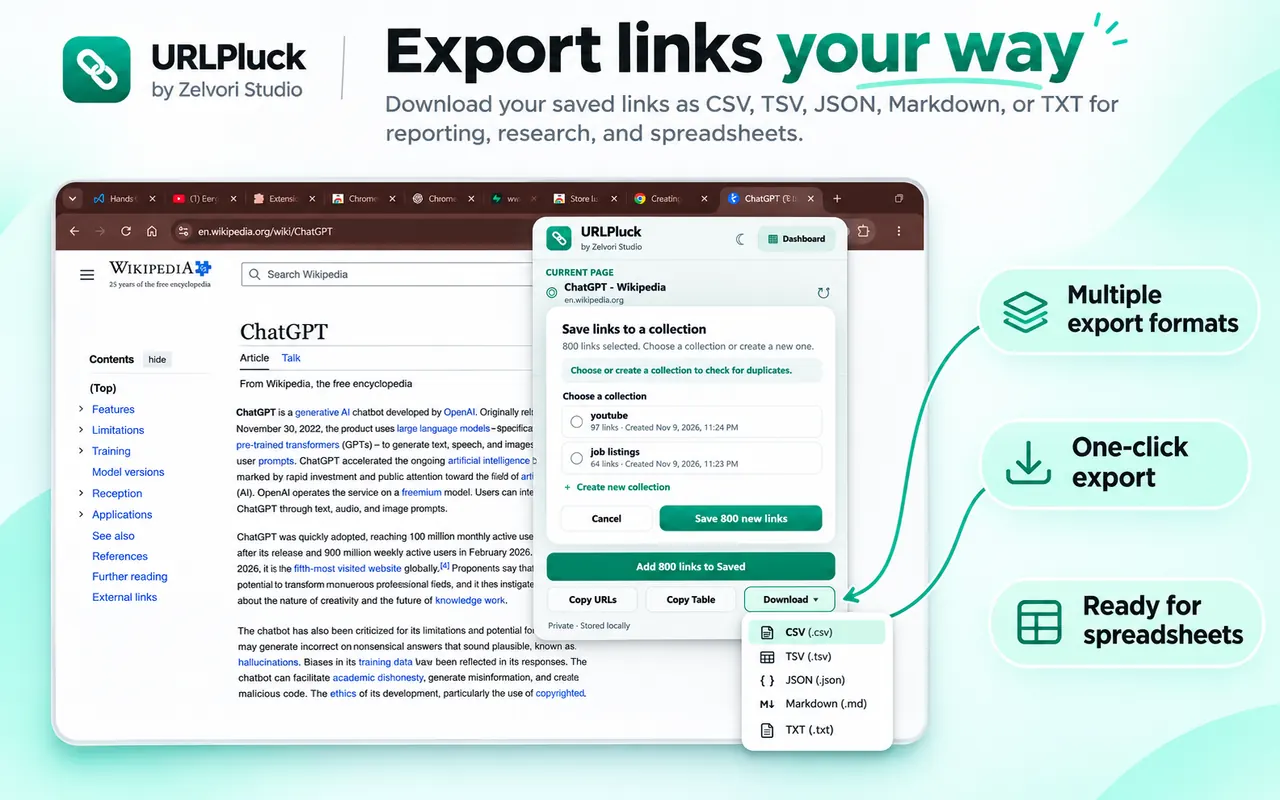
Choose the export format that matches your workflow.
How to export extracted links to Excel or Google Sheets
For a spreadsheet, export the links as a CSV file. Open it in Microsoft Excel or import it into Google Sheets, then sort, filter, and annotate the results. URLPluck creates CSV or TSV files rather than native Excel .xlsx workbooks. For import details, see our step-by-step CSV to Excel guide.
When is a webpage link extractor useful?
- Research: collect article references and resource links from a page.
- Job searches: save links to job listings that appear on a supported webpage.
- Development: review documentation, project and repository links from a page.
- Content organization: export useful URLs or save selected links in named collections.
Why might some links be missing?
Some sites load links only after scrolling, clicking a tab, signing in, or accepting a prompt. Others use custom interactive elements that are not conventional hyperlinks. Open the relevant content first, then run the extractor again. URLPluck can only collect what is available on a supported webpage.
Frequently asked questions
How can I extract all links from a webpage without coding?
Open the webpage in Chrome and activate URLPluck. It collects available hyperlinks into a list you can review, filter, copy, or export.
Can I copy all URLs from a webpage at once?
Yes. After extracting links with URLPluck, use its copy option instead of opening and copying every link individually.
Can I extract links from an entire website?
Not automatically with URLPluck. It extracts links from the open webpage, not every page across a domain. For multiple pages, visit each and save the relevant results.
Can I export links to Excel?
Export the extracted links to CSV or TSV, then open the downloaded file in Excel or Google Sheets.
Extract your next list of links in Chrome
Install URLPluck for free, collect webpage hyperlinks, and keep the ones you need.
Get URLPluck on Chrome Web Store ↗Want to see every feature? Explore the URLPluck homepage.